
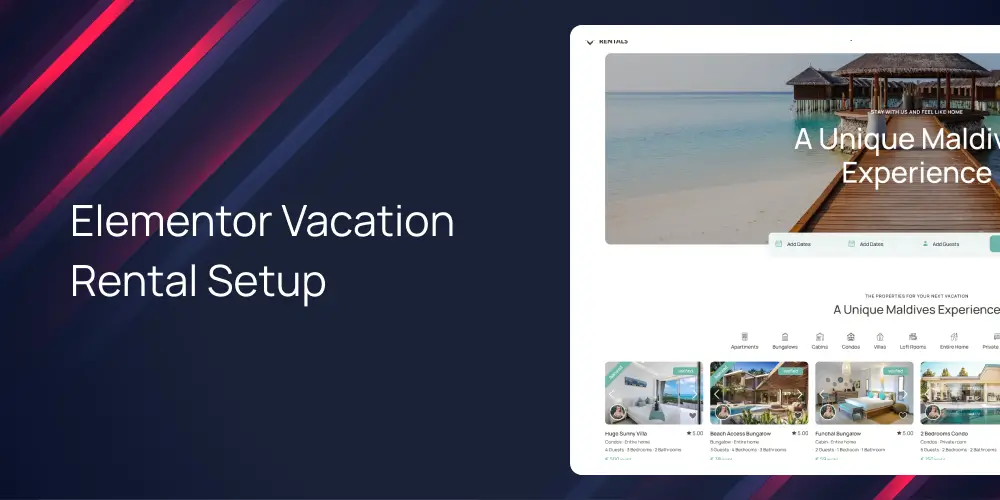
How to Build a Vacation Rental Website with Elementor and WPRentals
Last updated: May 16, 2026
Building an elementor vacation rental site does not require Elementor Pro. The WPRentals vacation rental theme ($79 one-time on ThemeForest) bundles its own WpRentals Elementor Addon that converts every theme shortcode into a drag-and-drop widget.
Elementor Free 4.0 or newer is all you need (per the WordPress.org plugin page). No Pro subscription anywhere in this stack. If you’ve never installed a WordPress theme before, no worries, the steps below walk through every click.
The setup has two layers. Page-level widgets (search form, grids, booking form, calendar) drop onto any Elementor page. WpRentals Studio (launched November 2025) handles custom Single Property, archive, and Header/Footer templates. Follow the eight steps below and you will finish with a fully bookable vacation rental site on Elementor Free.
Why Elementor and WPRentals work well together
Elementor has 10M+ active installs per the WordPress.org plugin page. WPRentals brings the engine: a 4.84/5 rated theme from 607 reviews. The current version is tracked in the WPRentals changelog.
Elementor handles the look. WPRentals handles the booking logic: availability, payments, calendar sync, and pricing rules. The booking form widget talks to the same core booking engine no matter where you place it, and the theme handles minimum stays, weekend rules, and extra guest fees (WPRentals page builders post).
This is the key thing most articles get wrong: you don’t need Elementor Pro for any step in this guide. It’s also why pure Elementor template kits (like Veela or Villahoya on Envato) don’t solve the same problem. They give you pretty layouts. They don’t give you a booking engine, an availability calendar, iCal sync, or Stripe checkout. WPRentals ships all of that.
What you need before you start
What you’ll need:
- WordPress on any host that runs current PHP. Elementor Free lists PHP 7.4 as the minimum and recommends PHP 8.1+ on the WordPress.org plugin page. Check the WpRentals Elementor Addon plugin header for its current minimum.
- Elementor Free 4.0 or newer from WordPress.org. Not Pro.
- WPRentals from ThemeForest ($79, includes 6 months support).
- The WpRentals Elementor Addon, bundled with the theme purchase. You install it from the theme’s plugin installer screen, not from WordPress.org.
WooCommerce is optional. WPBakery is also bundled with WPRentals but isn’t compatible with Elementor on the same page. Pick one builder per page.
How to set up WPRentals with Elementor
- Purchase WPRentals from ThemeForest, then upload it via Appearance » Themes » Add New » Upload Theme and run the theme installer.
- Install the WpRentals Elementor Addon from Appearance » Install Plugins. This is bundled with your theme, so don’t search WordPress.org for it.
- Install Elementor Free: Plugins » Add New, search “Elementor Website Builder”, then Install and Activate.
- Set up your property taxonomies in the WPRentals admin: Categories, Types, City, Neighborhood/Area, Features & Amenities, and Property Status.
- Add your first property listing with title, description, images, pricing, and assign it to your taxonomies.
- Open Theme Options and choose your global Listing Card Design (Type 1 to 4) and your global Advanced Search form type and fields.
- Build your homepage with Elementor: Create New Page » Edit with Elementor, then drag in the Search Form Builder, WP Rentals Grids, WpRentals Featured Listing, and Call to Action widgets from the WpRentals widget group.
- Build your Single Property template in WpRentals Studio: WpRentals Studio » Templates » Add New » Single Property Page, edit with Elementor, drag in Studio widgets, publish, then set Display Options.
That’s the whole setup. The rest of this guide explains each piece.
Configuring the Search Form Builder widget
This one looks intimidating in the docs but is straightforward once you see it. Open any Elementor page, type “Search Form Builder” into the widget search, and drag it onto the canvas. It lives in the WpRentals widget group (official doc).
Open the Content tab and you’ll see a Search Fields panel where you add, remove, and reorder fields by drag-and-drop. Field types include location (City taxonomy), property categories, check-in and check-out dates, and number of guests. Search Button Settings sets the button label and alignment.
The Style tab splits into three blocks: Form Styling, Field Styling, and Button Styling. It sounds like a lot, but each block is just color pickers, padding sliders, and font settings (plus hover states on the button).
For a hero search, drop the widget inside a full-width Elementor section with a background image. For a sidebar search, drop it inside a narrow column.
Here’s the part most tutorials miss. Straight from the docs: “While you can customize the search form for a specific page using this widget, all other pages will continue to use the global search form configured in WpRentals » Theme Options » Advanced Search » Search Form Type and Fields.” The Elementor widget is page-specific. The global form (used by your search results page and category archives) still lives in Theme Options.
The Elementor widget behaves like Hero Media Search Types 3 to 5, which support custom fields. Types 1 and 2 are hardcoded. Half Map search runs AJAX without a page reload, the same pattern Airbnb uses, and needs a Google Maps API key.
How taxonomy filters connect to search fields
Taxonomy terms are built in the WPRentals admin first. Create “Blue Ridge” under City, or “Cabin” under Categories, and those terms become available as filter options inside the Search Form Builder. To add a City filter, open the Content tab, add a new field, and pick the “Compare Term: like” rule pointed at the City taxonomy. WPRentals defines six taxonomies: Categories, Types, City, Neighborhood/Area, Features & Amenities, and Property Status (taxonomy doc).
Building property card displays
There’s no standalone “property card” widget. Listing card appearance is controlled in two places, and getting this distinction right saves you hours.
The global setting is in Theme Options » Listing Card Design » Listing Unit Type. You pick Type 1, 2, 3, or 4 and every list-based widget (Grids, Recent Items Slider, and so on) inherits it (listing card design doc). The per-widget override lives on the WpRentals Featured Listing widget, which lets you pick Type 1, 2, or 3 for one spotlighted property.
Type 1 is the standard card (image top, details below); Type 2 is horizontal; Type 3 exposes custom fields (configure first); Type 4 is the fourth global option. The Featured Listing widget supports Types 1, 2, and 3 only.
The image slider toggle is in Theme Options » Listing Card Image Settings » Use Slider in Listing Unit. Set it to YES and pick the number of images. The slider doesn’t apply to the Featured Listing widget.
The page-level widgets you’ll drop on pages:
- WpRentals Featured Listing: spotlights one property with selectable Type 1, 2, or 3.
- WP Rentals Grids: shows property categories (Cities, Areas, Types, Categories) in a grid.
- Recent Items Slider: recently listed properties in a horizontal slider.
- WP Rentals Map with Listings: pins your properties on a map.
One hard rule: once a page is opened with Elementor, you can’t switch it to WPBakery or Gutenberg.
Binding dynamic data with WpRentals Studio
WpRentals Studio is a no-code template builder built into WPRentals since v3.16.0 (November 2025). It gives you custom templates for Single Property pages, Property Category archives, Owner profiles, Header and Footer, and Blog posts, all editable with Elementor Free (Studio doc).
This is where most Elementor Pro users get confused, so read this twice. WpRentals Studio is not Elementor Pro’s Theme Builder. It doesn’t use Pro’s Dynamic Tags system either.
Studio widgets are purpose-built and already bound to the current property or term context. You don’t pick a Heading widget and then wire it to a custom field. You drop “Property Page Price Section” onto the template and it pulls the price from whichever property the visitor is viewing. The widget is the binding.
If dynamic tags were your usual workflow in Elementor Pro, there’s nothing to set up here. For the complete verified widget list, see Elementor widgets for WPRentals.
To build a Single Property template:
- Go to WpRentals Studio » Templates » Add New and pick “Single Property Page”.
- Click “Edit with Elementor”.
- Drag in the Studio widgets from the Elementor panel. These only appear inside Studio templates. Useful ones for a Single Property layout:
- WpRentals Property Featured Image (or Property Page Featured Image Header for a full-bleed top)
- Property Page Overview Section
- Property Page Details Section
- Property Page Features Section
- Property Page Sleeping Arrangements Section
- Property Page Availability Section
- Property Page Map Section
- Property Page Booking Form
- Property Page Reviews Section
- Publish the template.
- Refresh the editor screen. Display Options now appear. Assign the template to “All Single Property Pages” or a specific category.
You’ve just built a reusable Single Property template that auto-binds every listing on your site.
Plan on 20 to 40 minutes for one complete custom property template. Once it’s built, you assign it to all listings and pin the booking box where you like on desktop and mobile (per the WPRentals page builders post).
Studio also covers Header and Footer templates, with Website Logo, Navigation Menu, Website Login & User Menu, Add New Listing Button, and Currency Dropdown as drag-and-drop widgets.
Wiring up the booking flow
This is the part that turns a pretty site into a real business, and it’s simpler than you’d guess. Drop the Availability Calendar widget on any Elementor page, enter the property’s Listing ID (the property post ID), then style container padding, date box height, shadow, and background color. Calendar colors also flow from Theme Options » Design » Calendar Colors globally (calendar widget doc).
The booking form widget reads from Theme Options » Booking Configuration: daily or hourly mode, guest number field, date format. On the widget itself: Hide Favorites & Contact, Hide Social Section, container padding, box shadow, and background color (booking form doc).
iCal sync is per property. WPRentals supports Airbnb, Vrbo, Booking.com, and HomeAway. When a guest books on Airbnb, the iCal import blocks those dates in the theme calendar. Payments run on Stripe (SCA-compliant for Europe) and PayPal natively. Elementor controls where the form sits and how it looks; all booking logic (minimum stays, weekend rates, payment processing) runs inside the theme.
Elementor Free vs Elementor Pro: what you actually need
Every step in this guide works on Elementor Free. What Pro actually adds: Loop Grid, Posts widget, Custom Query Builder, Pro’s Theme Builder, and Pro Dynamic Tags. None are used in this workflow. Studio replaces Pro’s Theme Builder. Studio widgets replace Dynamic Tags. WP Rentals Grids and Featured Listing replace Loop Grid for property displays.
The cost breakdown:
- WPRentals theme: $79 one-time, includes 6 months support.
- WpRentals Elementor Addon: bundled, no extra cost.
- Elementor Free: free.
- Elementor Pro: optional, not used here.
Total cost to launch: $79 plus hosting. No recurring page-builder subscription.
Common gotchas and how to fix them
- Search form shows no results. Check the “Compare Term: like” rule on each taxonomy field, and confirm the terms actually have listings assigned.
- Wrong card design on listing pages. Card design type is global in Theme Options. The Featured Listing widget is the only per-widget override. Clear your browser cache after saving.
- Studio template not applying. Display Options only appear after you publish and then refresh the Studio edit screen. Check the conditions are set on the right template type.
- Availability Calendar shows nothing. Confirm the Listing ID is entered correctly.
- Half Map search returns nothing or the map is blank. The Google Maps API key has to be configured in Theme Options.
- Page builder conflict. You can’t edit the same page with both Elementor and WPBakery. If a demo page was built in WPBakery, rebuild it in Elementor from scratch.
Worked example: a three-property cabin rental site
Three properties on a single domain, all bookable, no Pro subscription. Here is how the pieces come together for a small cabin operator.
Three properties (Pinewood Cabin, Lakefront Retreat, Hilltop Hideaway) all assigned to City “Blue Ridge” and Category “Cabin”. The homepage uses a Search Form Builder widget in a hero section (check-in, check-out, guests, City), a WP Rentals Grids widget filtered to Cabin, and a WpRentals Featured Listing (Type 2) spotlighting Lakefront Retreat.
The Single Property template in Studio: Property Page Featured Image Header for the top, then Property Page Overview Section, Property Page Booking Form pinned to the right column, Property Page Availability Section, and Property Page Map Section. Publish, refresh, then in Display Options assign it to “All Single Property Pages”. Under 40 minutes from blank canvas to assigned.
Booking setup: Stripe for direct card payments in Theme Options » Booking Configuration, then per-property iCal export URLs added to Airbnb so a booking on either platform blocks the other. Once these are wired up, run your first test booking end to end. If iCal sync misses a date, the import URL on the property listing is the place to start.
Key Takeaways
- The WpRentals Elementor Addon ships with the $79 theme and works on Elementor Free, with no documented feature requiring Elementor Pro.
- WpRentals Studio (launched November 2025, v3.16.0) replaces Elementor Pro’s Theme Builder using purpose-built, context-aware property template widgets.
- The Elementor Search Form Builder widget is page-specific only; the global search form still lives in WPRentals Theme Options » Advanced Search.
- Listing card type (Type 1 to 4) is set globally in Theme Options; only the WpRentals Featured Listing widget supports a per-widget override.
- A complete Single Property template with booking form, gallery, and availability takes 20 to 40 minutes in WpRentals Studio, per WPRentals documentation.
And that’s it! You’ve built a bookable vacation rental site with WPRentals and Elementor Free, no Pro subscription required. If you are still comparing options, the best vacation rental WordPress themes 2026 roundup covers the full market.
Frequently Asked Questions
What is the WPRentals Elementor widgets plugin?
It’s the WpRentals Elementor Addon, a companion plugin bundled with the theme purchase (not sold separately on WordPress.org). It converts every theme shortcode into a drag-and-drop Elementor widget, and since November 2025 (v3.16.0) it also includes Studio for building custom property templates with Elementor Free.
Does building a vacation rental site with Elementor require Pro?
No. The WPRentals Elementor Addon and Studio both run on Elementor Free. Elementor Pro adds Loop Grid, Posts widget, and its own Theme Builder, none of which are needed because Studio replaces Pro’s Theme Builder and the page-level widgets cover property displays.
How does the WPRentals search form connect to property filters?
The WPRentals Search Form Builder widget in Elementor uses “Compare Term: like” field rules to connect each field to a theme taxonomy (City, Categories, Types, Amenities). Terms have to be created in the admin first. The Elementor widget is page-specific; all other pages use the global search form set in Theme Options » Advanced Search.
Can I sync a WPRentals site with Airbnb?
Yes, through iCal. WPRentals gives every property listing an iCal import and export URL. Importing the Airbnb iCal feed for a listing blocks those dates in the theme calendar. Exporting the iCal to Airbnb keeps that calendar current. Sync is configured per property, not globally.
What is the difference between an Elementor template kit and a theme like WPRentals?
Elementor template kits like Veela or Villahoya are design-only: page layouts, but no booking engine, no availability calendar, no iCal sync, no payment processing. WPRentals is a full vacation rental theme with a booking engine, iCal sync, Stripe and PayPal payments, and a dedicated Elementor widget library. Template kits are for brochure sites.



