Property Pages in WPRentals Theme

Customize property pages in WPRentals with flexible layouts, custom labels, icons, and similar listings to boost engagement and conversions.

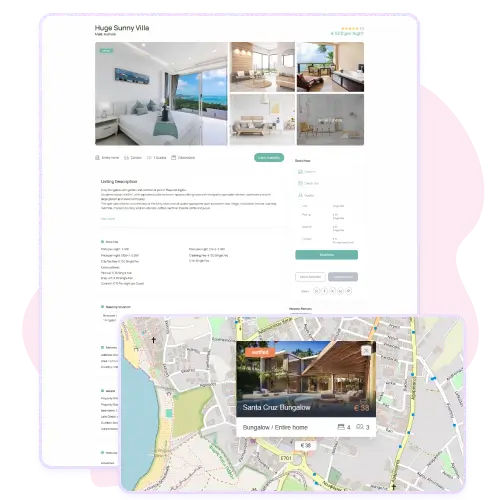
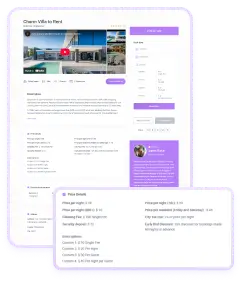
WPRentals Default Property Pages

Control every detail of your property pages

Custom Layout Control

Custom Layout Control

Design every property page with full control using drag-and-drop tools that let you enable, disable, or reorder sections easily.
Smart Page Display

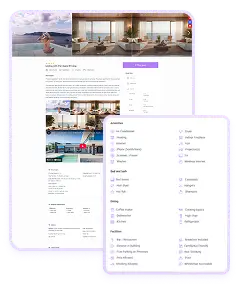
Choose from multiple listing layouts, enable sticky sidebars, and decide when property details appear for better user experience.
Personalized Labels and Content

Personalized Labels and Content

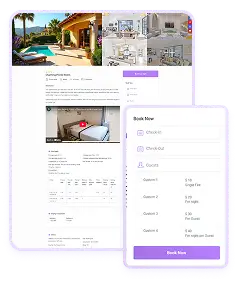
Edit text labels, add disclaimers, and adapt property terminology to match your brand language and regional preferences effortlessly.
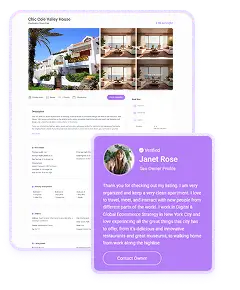
Enhanced User Engagement

Enhanced User Engagement

Display similar listings, highlight relevant features, and use custom icons to keep visitors browsing longer and converting faster.
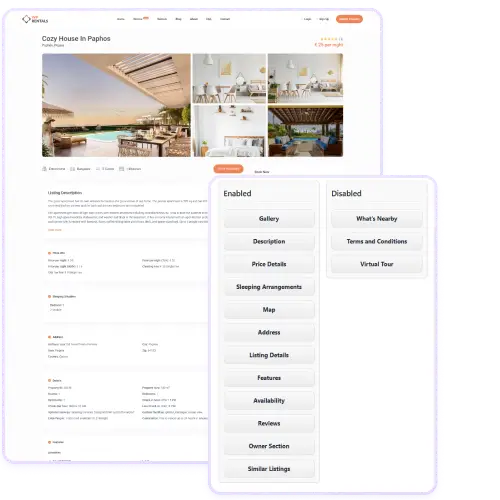
Listing Page Layout Manager_

Listing Page Layout Manager

The Layout Manager gives you full control over your property page design. You can enable or hide sections like gallery, description, map, and reviews.

Simply drag and drop each section to organize the flow of information exactly how you want. Whether you want the owner details at the top or reviews at the bottom, you can easily customize it. This tool helps property owners and managers create professional, well-structured listings that convert better.

Every listing page can maintain a consistent look that fits your brand and improves the browsing experience for potential renters.

Listing Page Settings_

Listing Page Settings

The Listing Page Settings section lets you define the layout type and control how information appears to guests.

Choose from five page types, show or hide map locations until booking is confirmed, and decide whether to display minimum stay details in the calendar. These options are designed for flexibility and privacy, especially for hosts who prefer keeping property details hidden until reservations are made.

You can adapt each property page’s visibility and design to match your business model. This section ensures your listings look clean, user-friendly, and compliant with your preferred privacy settings.

Listing Page Text Labels

Text Labels customization helps you rename sections like Features, Description, Price Details, and Terms. It’s ideal for branding consistency and localization, especially if you operate in different regions or want to use custom terms.

You can also define your own list of bed types for clearer property descriptions. This flexibility makes every listing more relevant to your audience and easy to read. Updating labels ensures that your property pages communicate your message naturally, using words that fit your tone and market.

It’s a simple but powerful way to tailor the user experience on your site.

Features and Amenities

Features and Amenities display the highlights of each property and help visitors decide faster. You can choose to show or hide unavailable features, which keeps listings clean and professional.

With taxonomy-based management, you can organize amenities into logical groups like Indoor, Outdoor, or Safety. These details create trust by offering clear, structured information about what guests can expect. The more organized your features are, the more confident visitors feel.

This area of WpRentals helps property owners present details transparently, making it easier for guests to filter and compare listings effectively across the website.

similar listings

Similar Listings

The Similar Listings feature automatically shows other relevant properties on each listing page.

You can control how many similar listings appear and choose how they’re sorted, such as by price or category. This feature keeps users browsing longer and increases the chances of finding the right rental.

It’s a smart way to improve engagement and reduce bounce rates. You can also define which taxonomies (like area, city, or property type) are used to find similar listings. When optimized, this section works like personalized recommendations, improving conversions while maintaining a seamless and professional browsing experience.

Map Marker Infobox and Disclaimer_

Map Marker Infobox and Disclaimer

The Map Marker Infobox Design allows you to customize what users see when they click a property marker on the map. You can define custom fields and icons for better clarity.

Alongside this, the Disclaimer Text section lets you add legal or informational notes specific to your business. Both features help build trust and transparency. The infobox gives a polished look to your maps, while the disclaimer ensures compliance and clear communication.

Together, they make your listing pages look professional, informative, and aligned with your brand identity across every property displayed on your site.